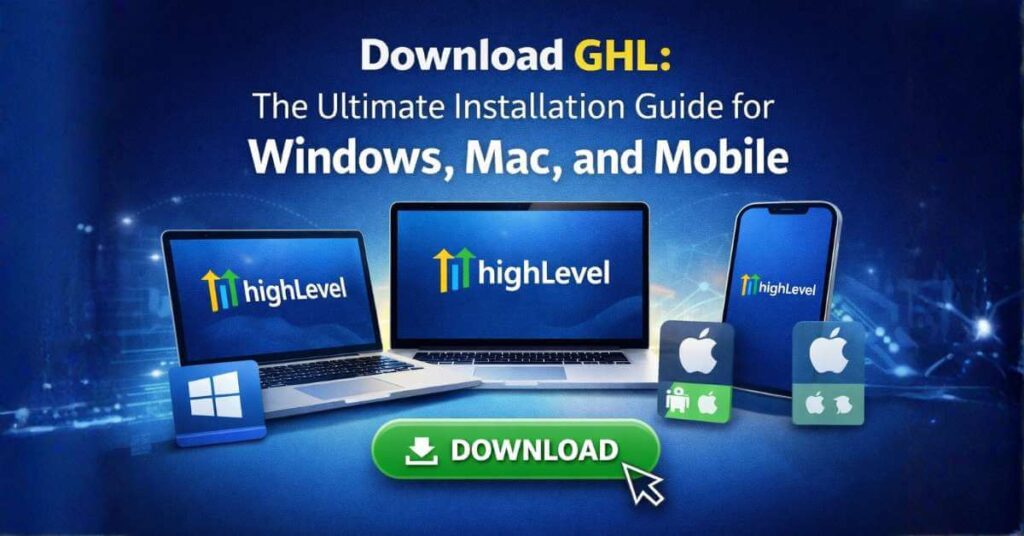
Download GHL: The Ultimate Installation Guide for Windows, Mac, and Mobile
If you’ve been using GoHighLevel (GHL) in a browser tab tucked away between dozens of other websites, you’re missing out on a significant productivity boost. While the web app is powerful, the native GHL desktop app and mobile versions offer a level of focus and speed that a browser simply can’t match.
Whether you are looking for the GHL Windows download, the macOS version, or the LeadConnector app for your phone, this guide covers every official way to get GHL on your devices.
Many users ask: "Why bother with a download when I have Chrome?" After using the standalone version, the difference is clear. Using a dedicated app helps with:
Native OS Notifications: Get real-time alerts directly in your Windows or Mac notification center. You’ll never miss a lead because a browser tab was muted.
Reduced "Tab Fatigue": Separating your CRM from your research and email tabs helps you stay in "deep work" mode.
Faster Login via OAuth: The desktop app uses your default browser to securely authorize your session, making the login process smoother and safer.
2. How to Download GHL for Windows and Mac
HighLevel has released official installers for both major operating systems. You can choose between the HighLevel branded app or the LeadConnector version (often used by agencies).
Click the Windows Download Link from the portal above.
Open the .exe file once the download finishes.
Follow the setup wizard—it only takes a few seconds.
Launch GHL from your Start Menu and click Sign In. It will open your browser to verify your credentials and then automatically "handshake" back to the desktop app.
Installation Steps for macOS (.dmg):
Select the macOS Download Link.
Open the .dmg file and drag the HighLevel/LeadConnector icon into your Applications folder.
Launch the app via Spotlight (Cmd + Space) or your Launchpad.
Complete the secure browser sign-in to sync your account.
3. GHL Mobile: The LeadConnector App
While the desktop is for building, the mobile app is for closing. If you aren't using the mobile version, you are likely missing out on "Speed to Lead" opportunities.
You don't need a special link for these; you can find them in the official stores:
iOS/iPhone: Search for "LeadConnector" in the Apple App Store.
Android: Search for "LeadConnector" in the Google Play Store.
Tip: If you work with a White Label agency, ask them for their specific app name—they may have a custom-branded version of GHL waiting for you!
4. Troubleshooting Your GHL Download
If you run into issues during the GHL app download or installation, check these three common fixes:
"App is not from a verified developer": On Mac, you may need to go to System Settings > Privacy & Security and click "Open Anyway" the first time you launch the app.
Login Loops: If the browser doesn't redirect you back to the desktop app, ensure you are logged into the web app in your default browser (usually Chrome) before hitting the "Sign In" button in the app.
Notification Issues: Make sure you’ve allowed "HighLevel" or "LeadConnector" in your computer's "Notifications & Actions" settings.
Downloading GHL to your desktop is one of the easiest ways to professionalize your workflow. It transforms the platform from "just another website" into a core piece of your business infrastructure.
Ready to get started? Head over to the official download page and grab the version that matches your OS today.
Some links on this site are affiliate links. If you choose to sign up through these links, Anything GHL may earn a commission at no additional cost to you.